
OpenAI’s latest model, DALL-E 2 is a groundbreaking technology in the field of image generation and manipulation. You can create surreal scenes, modify existing images as well as generate variations while preserving key features of the original image. Let’s understand how it works and how you can use it.
What is DALL-E?
DALL-E stands as an innovative artificial intelligence (AI) technology that allows users to craft new images by utilizing text-to-graphics prompts. In practical terms, Dall-E operates as a neutral network, proficient in producing entirely fresh images in various styles specified by the user’s prompts.
The name Dall-E pays homage to the dual thematic elements of the technology, indicating a convergence of art and AI. The first segment (DALL) draws inspiration from the renowned Spanish surrealist artist Salvador Dali whereas the second part (E) is linked to the fictional Disney robot Wall-E. This fusion mirrors the abstract and somewhat surreal illustrative prowess of the technology, all automated by a machine.
Developed by AI provider OpenAI, Dall-E was launched in January 2001. Leveraging deep learning models alongside GPT-3 large language models as its foundation, this technology comprehends natural language user prompts to create AI images. Dall-E represents an evolution of the concept OpenAI initially introduced in June 2020, originally named Image GPT. This earlier iteration aimed to showcase how a neural network could generate high-quality images.
With Dall-E, OpenAI expanded on the initial GPT concept, enabling users to create new images using a text prompt, akin to how GPT-3 generates text in response to natural language prompts. Categorized under generative design, Dall-E competes with similar technologies such as Midjourney and Stable Diffusion.
How Does DALL-E Work?
Dall-E uses several technologies, including natural language processing (NLP), large language models (LLMs), and diffusion processing. Built as a subset of GPT-3 LLM, Dall-E opts for a more focused approach with only 12 billion parameters, distinct from GPT-3’s 175 parameters. This optimization is specially tailored to the text-to-image generations.
Similar to GPT-3, Dall-E utilizes a transformer neural network, also known as a transformer. The model works to establish connections between different concepts. Technically, the methodology behind Dall-E, known as Zero-Shot Text-to-Image Generation, was initially detailed by OpenAI researchers in a 20-page research paper released in February 2021. Zero-Shot is an AI approach where a model accomplishes tasks, such as generating new images, by leveraging prior knowledge and related concepts.
To validate Dall-E’s image-generation capabilities, OpenAI introduced the CLIP (Contrastive Language-Image Pre-training) model. Trained on 400 million labeled images, CLIP assists in evaluating Dall-E’s output by determining the most suitable caption for a generated image.
In the first iteration Dall-E (Dall-E 1) used a technology called Variational Auto-Encoder (dVAE), influenced in part by research from Alpabet’s DeepMind division with the Vector Quantized Variational AutoEncoder. This was followed by Dall-E 2 which improved on the methods used for its first generation to create high-end and photorealistic images. It uses a diffusion model that integrates data from the CLIP model to generate higher-quality Dalle images.
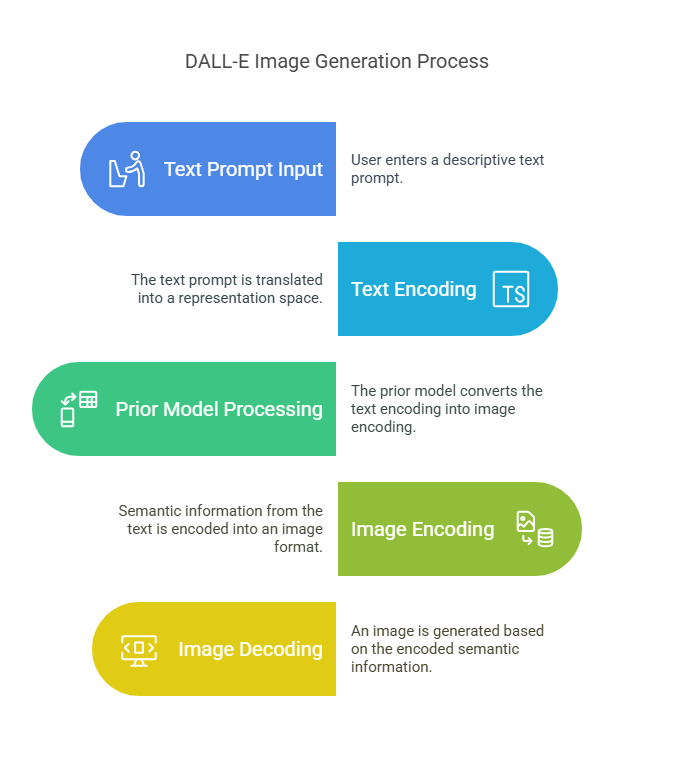
At its core, the process of OpenAI Dall-E 2 can be simply outlined:
- Initially, a text prompt is entered into a text encoder trained to translate the prompt into a representation space.
- Subsequently, a model known as the “prior” translates the text encoding into a corresponding image encoding, capturing the semantic information embedded in the text encoding.
- Lastly, an image decoder randomly produces an image visually representing this semantic information.
OpenAI has recently announced Dall-E 3, the successor of Dall-E 2. While Dall-E 2 focuses on aesthetics, Dall-E 3 exhibits greater adaptability, offering users a border palette of visual styles.
How to Use DALL E 2?
The process of embarking on your journey with Dall-E 2 is quite straightforward. Simply follow these steps to get started:
Step 1: Head to Dall-E 2’s web application and sign up.
Step 2: Click the ellipsis (…) in the top-right corner, then select Purchase Credits. Acquire 115 credits for $15.
Step 3: Input your prompt on the homepage and click “Generate.”
Step 4: After a brief wait, you will be presented with four AI-generated images for you to choose from.
Step 5: Click on any image, which you can Download, Save to a collection, Share to Dall-E 2’s public feed, Edit, or generate more variations with a single click.
Now, let’s understand a few more things in detail.
During the sign-up process for a free OpenAI account, you need to complete the process of verifying your phone number. Due to the potent capabilities of OpenAI’s AI tools, additional security measures are in place to prevent misuse by spammers, setting it apart from typical apps.
OpenAI Dall E 2 functions on a credit system. One credit covers one prompt and four variations. If your account was created before April 6, 2023, you received 50 image generation credits and an extra 15 credits each month. However, this free trial has now been discontinued, and credits are required to be purchased. At $15 for 115 prompts, each with four variations, the cost averages around ~$0.13 per prompt or ~0.035 per image.
Once you are equipped with credits and open the home screen of Dall-E 2, you will encounter a seemingly uncomplicated home screen. It features an art gallery crafted with OpenAI Dalle 2 and a text field for inputting prompts which is your starting point. Enter your starting prompt, hit “Generate,” or go for “Surprise Me” if you need inspiration. Alternatively, you can experiment with the following prompts:
- A vibrant depiction inspired by Van Gogh, featuring a bustling marketplace on a sunny day.
- A contemporary sketch capturing the essence of a busy metropolitan street at night.
- An imaginative portal of an underwater metropolis with marine life and glowing coral reefs.
After a few seconds, you will be presented with four AI-generated options. Select any image and choose among the options for Downloading, Saving to a collection, Sharing publicly, Editing, or creating Variations.
Creating Prompts in Dall E 2
To unleash the full potential of the OpenAI image generator, you need to master the art of constructing impactful prompts. While experimentation is vital for understanding how DALL E 2 AI interprets various concepts, here are some tips that you can use to elevate your prompt writing skills.
- Prioritize Specificity and Detail
Write prompts that are specific and detailed. Rather than simply writing “tree” as a prompt, be more specific like “a surreal depiction of a bonsai tree suspended in a cosmic landscape, surrounded by ethereal light and floating celestial elements.” So, when you are providing more specifications, you are not only refining your vision but also stimulating Dall-E 2 to generate more intricate and imaginative outcomes.
- Explore Different Descriptors and Styles
Experiment with an array of descriptors and artistic styles to challenge and inspire Dall-E 2. Encourage the AI to explore abstract art by requesting “a dynamic composition of vibrant colors and shapes in the style of Pablo Picasso.”
You can even prompt this tool by asking for a realistic portrayal in the vein of classical artists like “a Renaissance-inspired scene with soft lighting and intricate details.” Explore various themes, moods, and concepts to push the boundaries of creativity. By diversifying your prompts, you open the door to a spectrum of possibilities.
- Manage Expectations and Iterations
Acknowledge that achieving outstanding results may require refinement and iteration. Consider your initial prompt as a starting point rather than the final destination. Experiment with variations, adjust details and iterate on your ideas. It is through this iterative process that you can uncover hidden nuances and refine your prompts to yield truly remarkable and unique results.
- Avoid Overcomplication Prompts
Strike a delicate balance between complexity and clarity. While specificity is encouraged, avoid overwhelming Dall-E 2 with overly detailed prompts. Opt for clarity by focusing on a central theme or concept. For instance, a prompt like “a serene sunset casting warm hues over a mountain range, with silhouetted trees in the foreground” maintains clarity and coherence. This ensures that Dall-E 2 can effectively interpret and generate visually striking results.
You can experiment with these suggestions or create your prompts to discover the vast creative potential of this OpenAI photo generator.
Advanced Features of Dall E 2
Beyond its image generation capabilities, Dall-E 2 comprises several advanced editing features. These primarily two techniques include:
- Inpainting: In this method, you can selectively erase a specific element from an existing image, and Dall-E 2 employs AI to intelligently fill the gap with the content of your choice.
- Outpainting: Outpainting involves using AI to expand the boundaries of an existing image and thereby, expanding its over composition.
You can combine these techniques to meticulously refine your images, opting for versatile editing possibilities. There are several approaches to initiate the editing process and explore these powerful features.
Editing Images with Dall-E 2
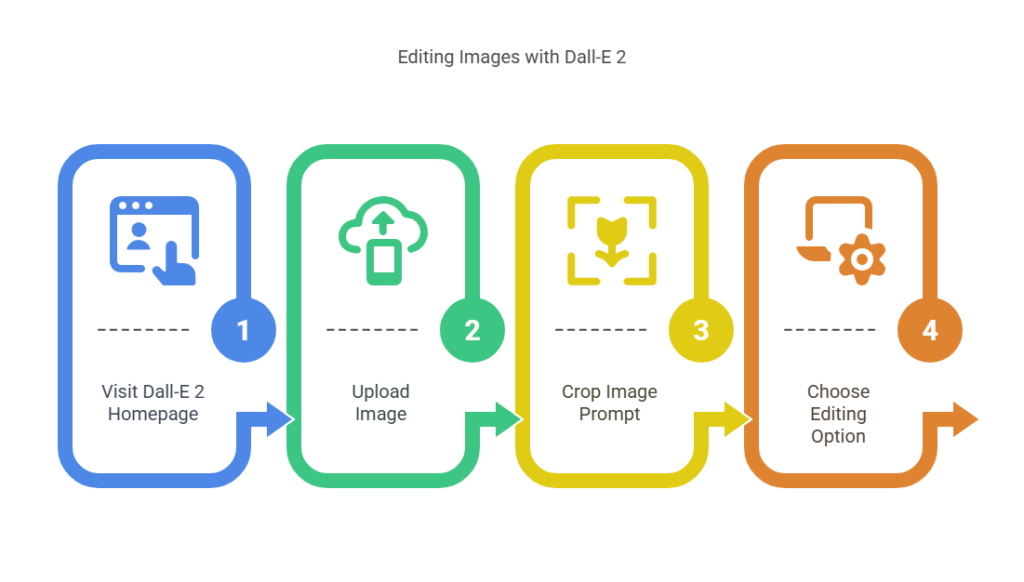
You can easily edit a photograph or other images you have saved on your device or laptop. Follow these steps to edit images in Dall-E 2:
Step 1: Go to the homepage of Dall-E 2, click “Upload an image,” and select the image you want to edit.
Step 2: In this step, you will be prompted to crop the photo into a square. You can skip this step if you want.
Step 3: Next, click “Generate variations” if you want Dall-E 2 to use your image as a prompt, or select “Edit Image” if you want to edit with advanced techniques. Alternatively, you can choose any image you have created using Dall-E 2 and click “Edit.”
How to Do Inpaint and Outpaint with Dall-E 2?
Inpainting
Two of Dall-E 2’s advanced features are inpainting and outpainting. Here’s how you can perform inpainting with Dall-E 2:
Step 1: Open an image in the editor and choose the Eraser tool (the keyboard shortcut is E).
Step 2: Paint over the specific area in your image that you wish to replace.
Step 3: Use the pop-up prompt bar to articulate your vision for the entire image, providing details on how the gap should be filled. Subsequently, click “Generate.”
After the last step, you will receive four options, offering a range of possibilities. If none align with your expectations, consider creating additional variations with a different prompt, or revisiting the inpainting process.
Outpainting
Follow the below steps to perform outpainting with Dall-E 2:
Step 1: Open an image in the editor and choose “Add generation frame” (the keyboard shortcut is F).
Step 2: Utilize the prompt bar to articulate your preferences, then click “Generate.” For example, if you are improving a landscape, you might want to input a prompt like “make the scene bigger with Monet-style water lilies and a calm breeze.”
Step 3: Once again, you will be presented with four options. Navigate through them using the arrows. If none suits your preference, click “Cancel.” Otherwise, you can click on “Accept.”
Step 4: Lastly, you can add more generation frames or click the download button to save your creation.
It is important to note that during the beta phase or image editing, the entire edited image would not be saved. Instead, each additional generation frame is saved as an independent image. If you do not download your edited images as you create them, you will need to merge the original image with any generation frames using an application like Photoshop.
What are the Advantages and Limitations of Dall-E?
Dall-E offers several potential benefits including:
- - Speed: It can swiftly generate images in under a minute, responding promptly to simple text prompts.
- Customization: Users can craft highly personalized images based on text prompts, allowing for the creation of unique visual concepts.
- Iteration: You can easily do quick iterations on both new and existing images, empowering users to generate multiple variations efficiently.
- Accessibility: Dall-E is user-friendly and requires only natural language text, making it accessible without the need for extensive training or specific programming skills.
- Extensibility: The technology enables users to extend existing images by remixing or reimagining them in new ways.
However, this tool has several disadvantages as well. Some of these include:
- Copyright Concerns: Issues related to copyright arise with images created by Dall-E, and questions persist about whether it was trained on copyrighted materials.
- Realism: While Dall-E 2 has significantly improved image quality, certain outputs may still lack the realism desired by some users.
- Legitimacy of AI-Generated Art: Some raise ethical questions regarding the legitimacy of art produced by AI, prompting discussions about its potential displacement of human creativity.
- Data Set Limitations: Despite extensive training using a large data set, Dall-E may not possess sufficient foundational information, leading to potential discrepancies in generating intended images due to limited data on images and descriptions.
- Context Dependency: Accurate image generation with Dall-E requires a clearly defined prompt; overly generic prompts without context may result in inaccuracies in the generated image.
What is the Difference Between Dall-E 2 and Dall-E 3?
While Dall-E 2 was introduced in 2022, Dall-E 3 has benefited from the progress made in the field of AI during this time. Over the past year, there has been rapid advancement in various AI domains, including text-to-image models, Large Language Models, Graph neural networks, and audio generation models.
In terms of image generation, Dall-E likely employs an advanced diffusion process, drawing insights from the developments in Imagen and Stable Diffusion. Moreover, the introduction of RLHF (Reinforcement Learning from Human Feedback) as a crucial method for seamless human-AI interaction gives Dall-E 3 a distinct advantage over its predecessor, Dall-E 2. Dall-E 3 may incorporate even more cutting-edge guidance techniques, possibly a modified version of existing methodologies.
Conclusion
Therefore, by using Dall-E 2, you can easily generate new images or change existing images. Its capacity to seamlessly generate diverse and detailed images highlights the progress made in the field of deep learning. As Dall-E 2 continues to shape the landscape of AI, it underscores the ongoing evolution and impact of advanced models in transforming how we approach image generation and manipulation.